
Guide
Let Claude tidy your inbox every morning
If you keep finding yourself in the same inbox routine every morning, sorting promo mails, flagging the ones that mean work, and dragging order confirmations to the right folder, you can hand most of that to Claude Cowork. Once a day Claude opens your mailbox, reads the new messages, files them where they belong, and writes the actual to-dos into Todoist for you. You read what is left.
What you get
A routine that runs by itself every morning while you are getting coffee. Promotional newsletters go into a "Werbung" folder, out of sight, so they do not interrupt your morning and instead wait until you sit down and read them on purpose. Anything that asks you to do something lands in "TODO" and gets a matching entry in your favourite task app (for example Todoist, which is already available as a connector in Claude). Customer order confirmations move into "Shop". When you open your inbox a few minutes later, only the things that genuinely need you are still there.
Before you start
- An inboxmcp.io account with your mailbox connected. If you have not done that yet, follow Connecting Claude to your IMAP mailbox first. New to the term "MCP"? That post explains it in plain English.
- Claude Cowork running on your desktop. Cowork ships with Claude Desktop and is available on Pro, Max, Team and Enterprise plans.
- A Todoist account, plus the official Todoist connector enabled in Claude. You can swap Todoist for the task tool you already use (Things, Apple Reminders, Microsoft To Do). Adjust the wording in the prompt accordingly.
Step 1: Open Cowork
In Claude Desktop, open Cowork from the sidebar and pick Create scheduled task. The difference to a normal Claude chat: Cowork keeps state across runs and hands the same prompt back to itself on a schedule.
Step 2: Check your connectors
In your Claude profile under Customize → Connectors, make sure both inboxmcp.io and Todoist are enabled. Cowork uses the same connectors as your regular chats, so anything you have switched on here is available to Claude during the morning sweep.
Step 3: Set up the task
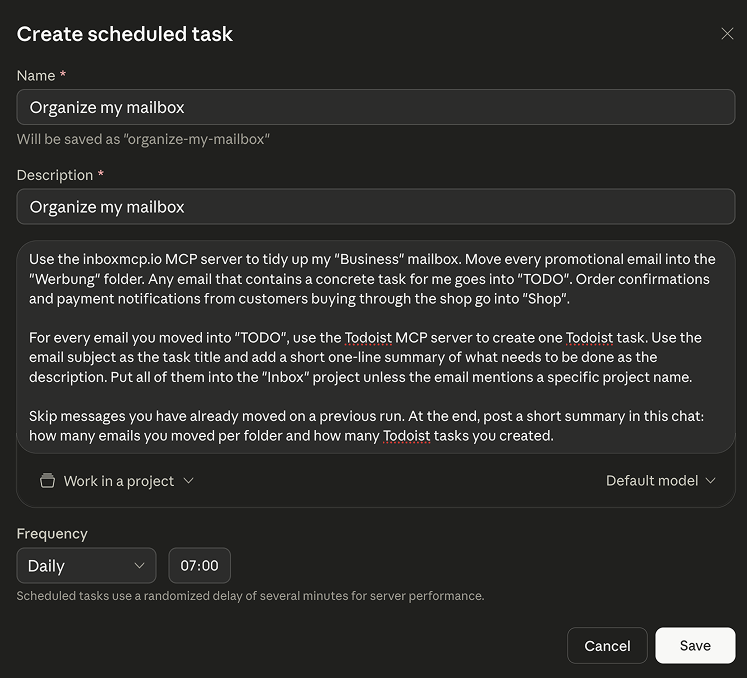
In Cowork, one task bundles three things on a single screen: a name and short description, the prompt itself, and the schedule. Paste the prompt below as is, then adjust folder names and rules to match how your inbox is structured.
Use the inboxmcp.io MCP server to tidy up my "Business" mailbox. Move every promotional email into the "Werbung" folder. Any email that contains a concrete task for me goes into "TODO". Order confirmations and payment notifications from customers buying through the shop go into "Shop".
For every email you moved into "TODO", use the Todoist MCP server to create one Todoist task. Use the email subject as the task title and add a short one-line summary of what needs to be done as the description. Put all of them into the "Inbox" project unless the email mentions a specific project name.
Skip messages you have already moved on a previous run. At the end, post a short summary in this chat: how many emails you moved per folder and how many Todoist tasks you created.
A few notes on this prompt. The "skip already moved" line keeps Cowork from looping forever over the same mails. The summary at the end is the part you actually read in the morning, so make sure you keep it. If you do not run a shop, drop that paragraph. If you have more folders, add them with a one-line rule each.
For the schedule in the same dialog, pick Daily as the frequency and a time you are usually still asleep (07:00 works well, the inbox is fresh and you are not). Give the task a descriptive name like Organize my mailbox so you can find it later in the Cowork dashboard, and click Save.
Step 4: Run it once
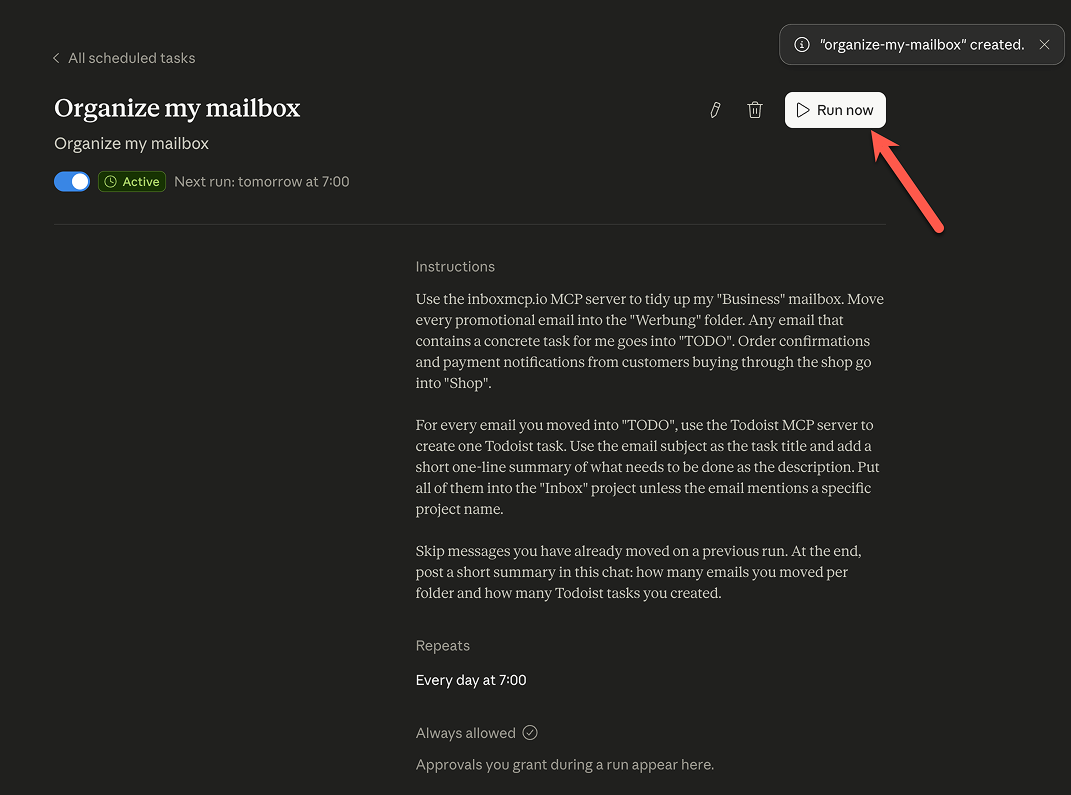
Trigger the first run manually so you see exactly what Claude will do. Cowork shows each action before it takes it: every move from one folder to another, every Todoist creation. Check that the folders match your intent. If you spot anything weird (for example, a newsletter you actually want to keep ending up in "Werbung"), edit the prompt right there and run again. Iterate two or three times until the result looks like what you would have done yourself.
Worth knowing
- Cowork needs a running computer. Scheduled tasks fire when Claude Desktop is open and your laptop is awake. If you close the lid at night, the task runs once you wake the machine up, not at 07:00 exactly.
- Folders are created automatically. If "Werbung", "TODO" or "Shop" do not exist yet, Claude creates them on the first run.
- The prompt is editable. You can open the scheduled task at any time and tweak the rules. The next run uses the updated version.
- You can pause it. Going on holiday and want a clean inbox for your reply later? Pause the schedule, do not delete it. Resume when you get back.
Variations
The exact same pattern works for adjacent workflows. A few that customers run:
- A weekly Friday digest that summarises everything the inbox saw that week, posted into a Notion page.
- An hourly support sweep for shared mailboxes that flags any message older than two hours that has not been answered yet.
- A monthly invoice sweep that pulls every PDF attachment from the "Buchhaltung" folder and uploads them into your DATEV folder.
Missing a piece?
inboxmcp exists because we wanted to be rid of exactly these morning routines ourselves. If there is still something missing from your ideal workday, a connector, a workflow, an inbox trick Claude could realistically take off your plate, drop us a line at hi@inboxmcp.io. We keep adding new building blocks to the platform, and the best ideas come from people actually using it.
By the way: if your use case is a fresh one and we turn it into a written-up post like this one, you get ongoing discounts on inboxmcp. Worth a short email.